All topics
Connect a Zebra DS3678 Barcode Scanner to an iPad
Pair the Zebra DS3678 with an iPad for Beam scanning. Follow HID setup steps, checks and tips for stable barcode capture.
The Zebra DS3678 barcode scanner connects to an iPad over Bluetooth in HID keyboard mode so you can enter data in Beam and quickly identify items or place them on location. This guide shows how to connect it.
These instructions are for the DS3678. Do not use its configuration barcodes for another model.
Set up the barcode scanner
- Scan HID Bluetooth Classic below to connect the scanner as a keyboard.
- Open Settings → Bluetooth on your iPad and select the DS3678.
- Open a text field and scan a known barcode to check the input.
Only reset the scanner if you want to erase its existing settings. Afterwards, scan HID Bluetooth Classic again and pair the scanner.
DS3678 Reset Factory Defaults

DS3678 Apple iOS Virtual Keyboard Toggle

HID Bluetooth Classic

Disable Pair on Contacts

Open the on-screen keyboard
On iPad the keyboard hides after you connect a Bluetooth scanner. Press the scanner’s scan button twice in quick succession to show it again.
- Double-click: Press the DS3678 scan button twice.
- Keyboard: The iPad keyboard opens on screen.
- Type: Enter text in the field.
- Close: Use the keyboard close button or press the scanner twice again.
One Enter key after each scan
For faster item identification, set the scanner to send Enter after each scan. Scan the barcode below to enable this on the DS3678.
Add an Enter key

Reduce scanner beeper volume
To change the beep volume, scan one of the barcodes below:
Low volume
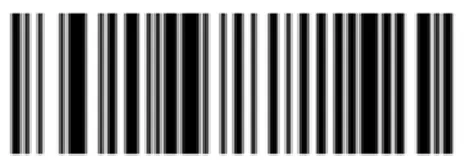
Medium volume
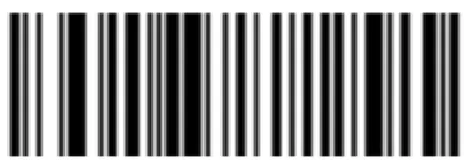
High volume

Manufacturer guide
Zebra DS36X8 Product Reference Guide.