All topics
Recalibrate the Zebra ZT111 printer
Recalibrate the Zebra ZT111 label printer for correct media and ribbon alignment.
Load the labels and, for thermal transfer printing, the ribbon. Then calibrate the media and ribbon sensors if the printer does not detect the labels correctly. The photos show the loading path in the ZT111.
Place the label roll
- Power: Connect the printer to power and turn it on.
- Open: Open the side cover.
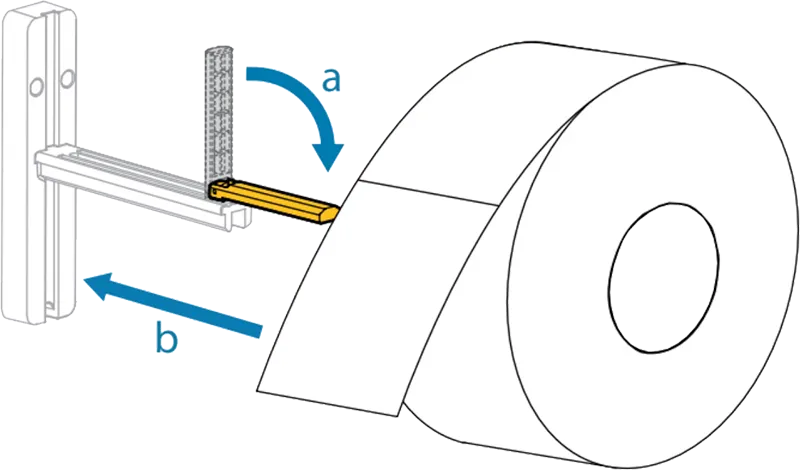
- Media guide: Fold the media guide down (a).
- Roll: Place the roll on the media hanger (b).
- Guide: Fold the media guide back up and slide it in until it almost touches the edge of the roll.
Feed the labels through
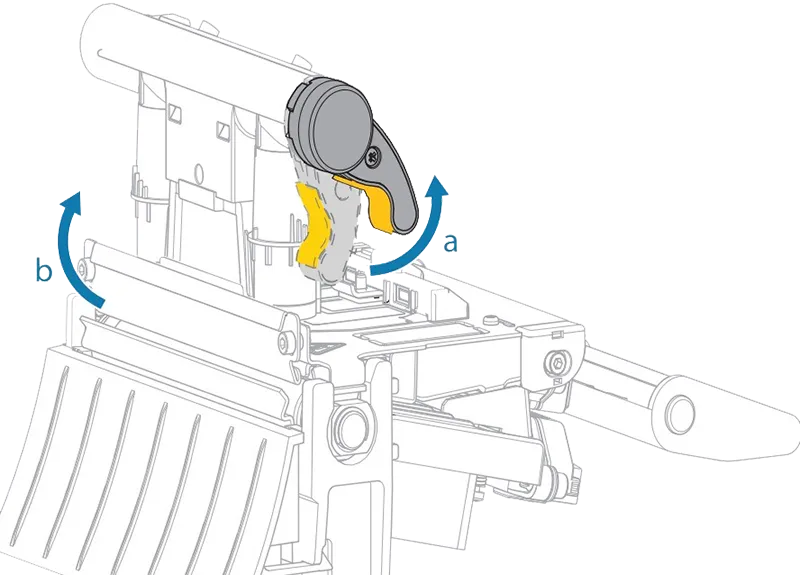
Lift the yellow lever to open the print mechanism (a). The print head rises so you can feed the labels and ribbon through (b).
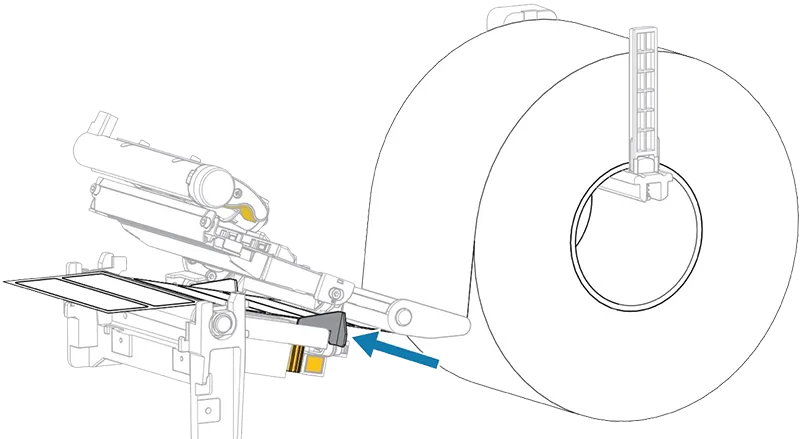
Feed the labels from the roll under the print head as shown in the image below.
Feed the ribbon under the print head
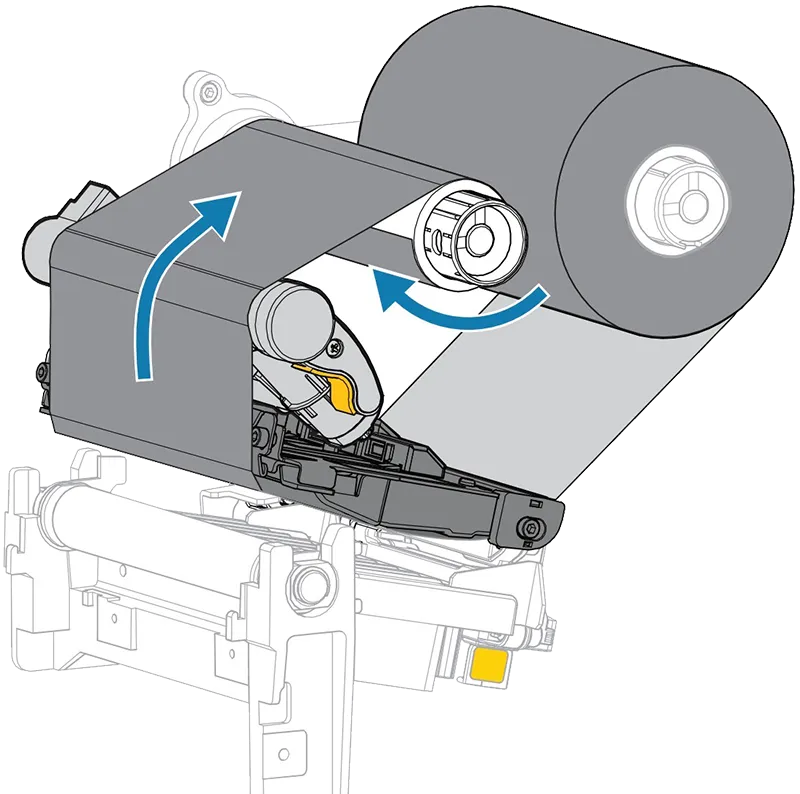
Use suitable thermal transfer ribbon and follow the loading path in the photo. Direct thermal printing does not use ribbon.
- Supply: Place the ribbon on the ribbon supply shaft as shown.
- Roller: Push the roller fully back.
- Core: Place an empty core on the ribbon take-up shaft and push it back.
- Thread: Thread the ribbon through as shown.
- Wrap: Wind the ribbon around the core a few times, then turn the core to take up slack and align the ribbon.
Close and calibrate
- Close the printhead. Hold PAUSE + CANCEL for two seconds.
- Open the printhead. Remove about 15 cm of labels, leaving only liner between the sensors. Move the ribbon aside.
- Close the printhead and press PAUSE. Wait until the supplies light goes out.
- Open the printhead. Reposition and tension the ribbon; advance a label between the sensors.
- Close the printhead, press PAUSE and wait again.
- Press PAUSE to resume printing. Check label positioning with FEED. Close the cover.
See Zebra’s manual calibration procedure for the indicator lights and intermediate steps.