All topics
Connect a Datalogic PBT9501 barcode scanner to a device
Connect the Datalogic PBT9501 to Beam in HID mode with clear pairing steps, reset barcodes and setup checks for reliable scanning.
The Datalogic PBT9501 barcode scanner connects over Bluetooth in HID keyboard mode so you can enter data in Beam and quickly identify items or place them on location. This guide shows how to connect it to your device.
Use these configuration barcodes only for the PBT9501. A factory reset clears existing scanner settings. Wait for the confirmation beep after each configuration step.
Reset factory defaults

Unlink

Enable variable PIN

HID link

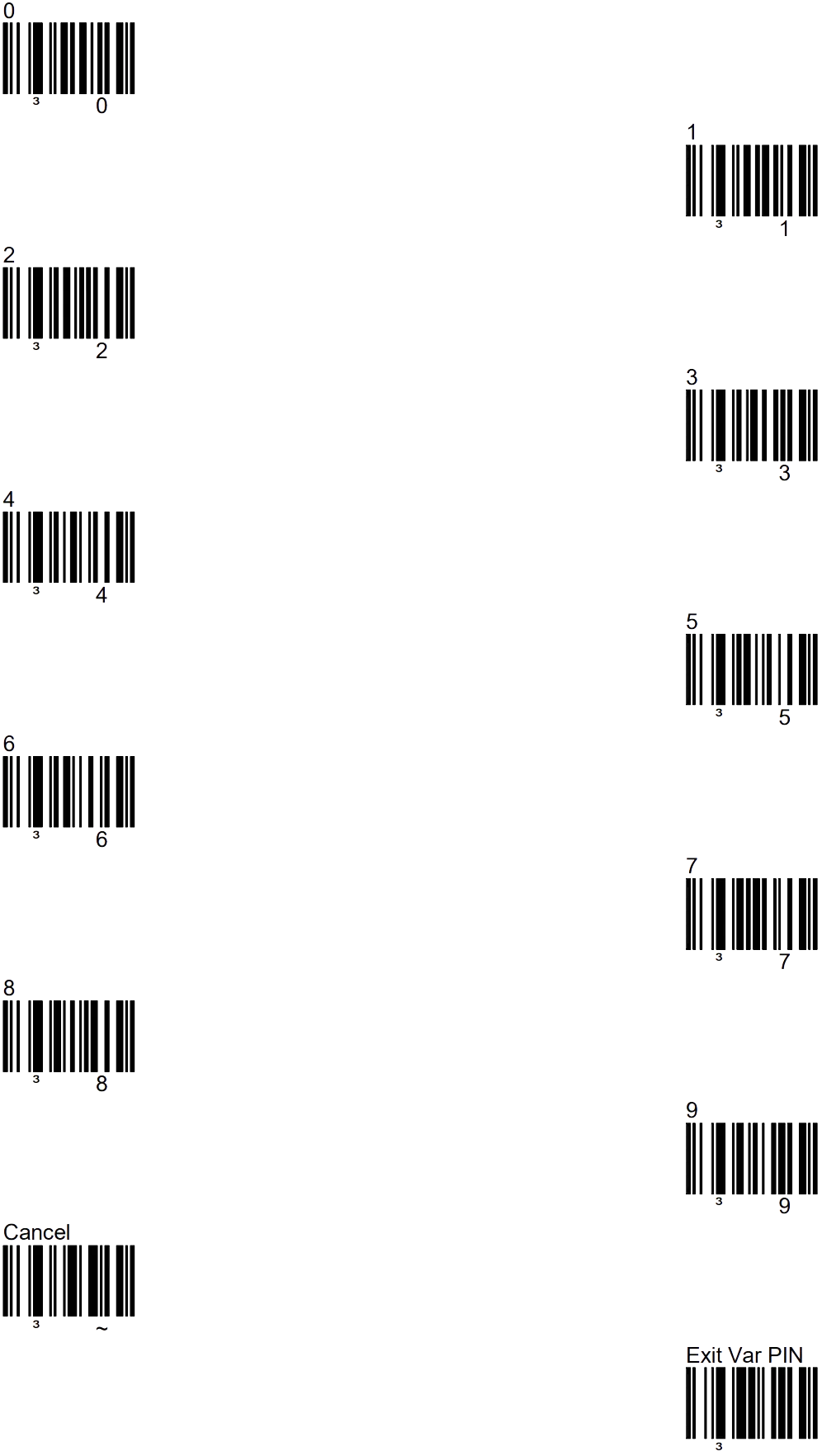
Open Bluetooth settings on your device and select Datalogic Scanner. If a PIN is requested, scan the displayed digits below and finish with Exit Var PIN. Then test a known barcode in a text field.
Scan numbers
Use the barcodes below to scan the Bluetooth prompt numbers. When done, scan the “Exit Var PIN” to end.
Connecting with SPP
SPP is a serial Bluetooth connection for an Android setup that supports this profile. Use HID for keyboard input. Only enable SPP if your setup is configured for it. Wait for the confirmation beep after each step.
1. Reset the scanner
2. Unlink existing connections
3. Link with SPP

On your Android device, search for Bluetooth devices. Make sure the scanner is not shown as an HID device: a keyboard icon often appears next to it in that case, and that icon should not be there.
Manufacturer guide
Datalogic PBT9501-AR Quick Reference Guide.