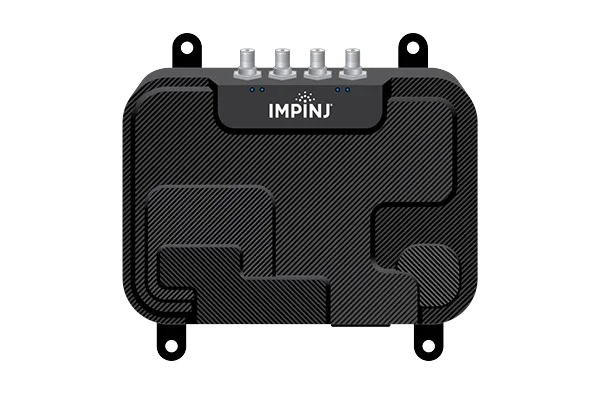
Impinj R700 RFID Reader
Advanced RFID reader, high throughput
From €1,295
Hardware
From counting stock in your store to checking warehouse shipments, we help you choose equipment that suits your products and the way you work.
27 products
Advanced RFID reader, high throughput
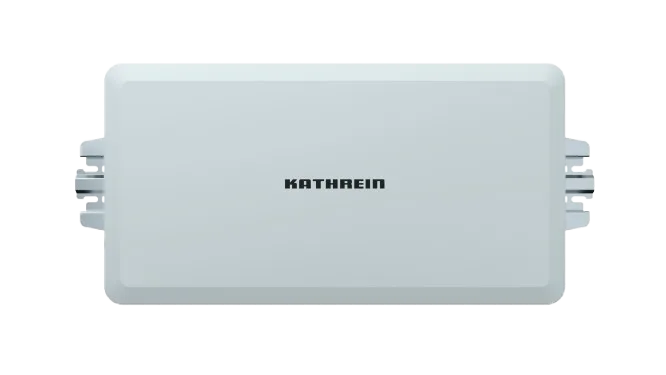
High-quality fixed RFID antenna
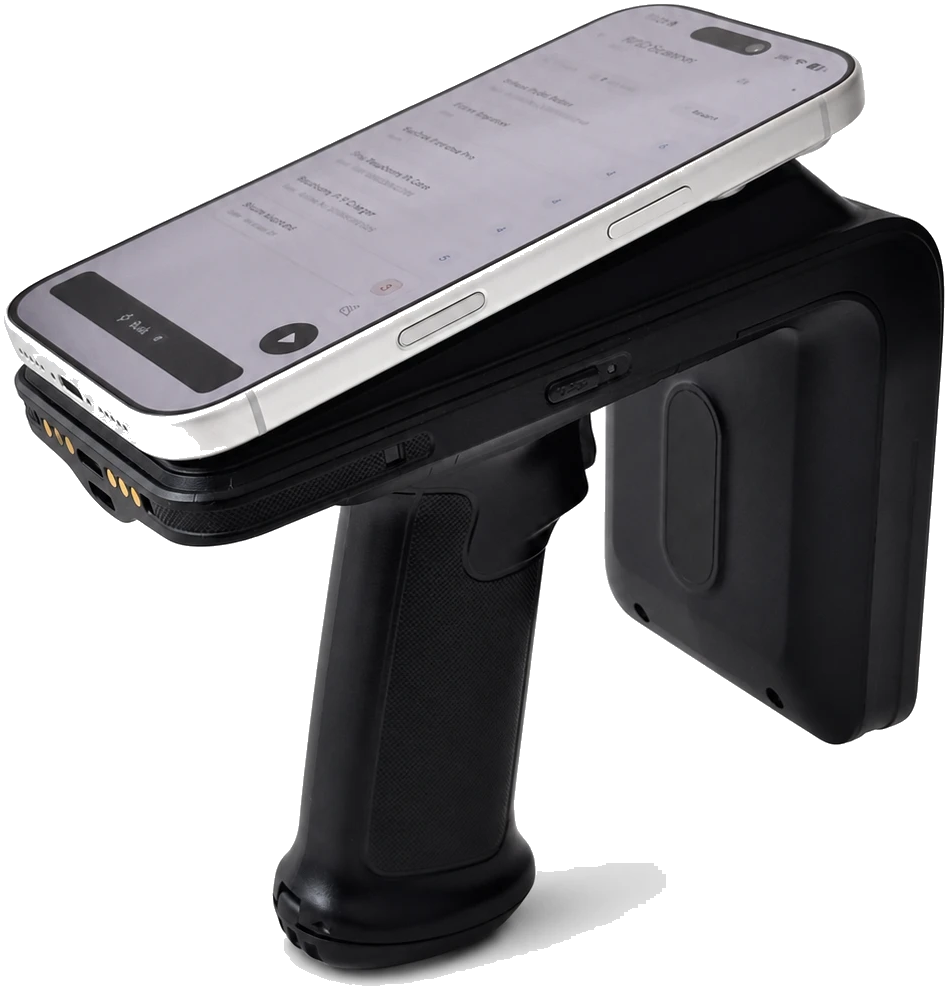
Mobile RFID sled for stock counts and item finding
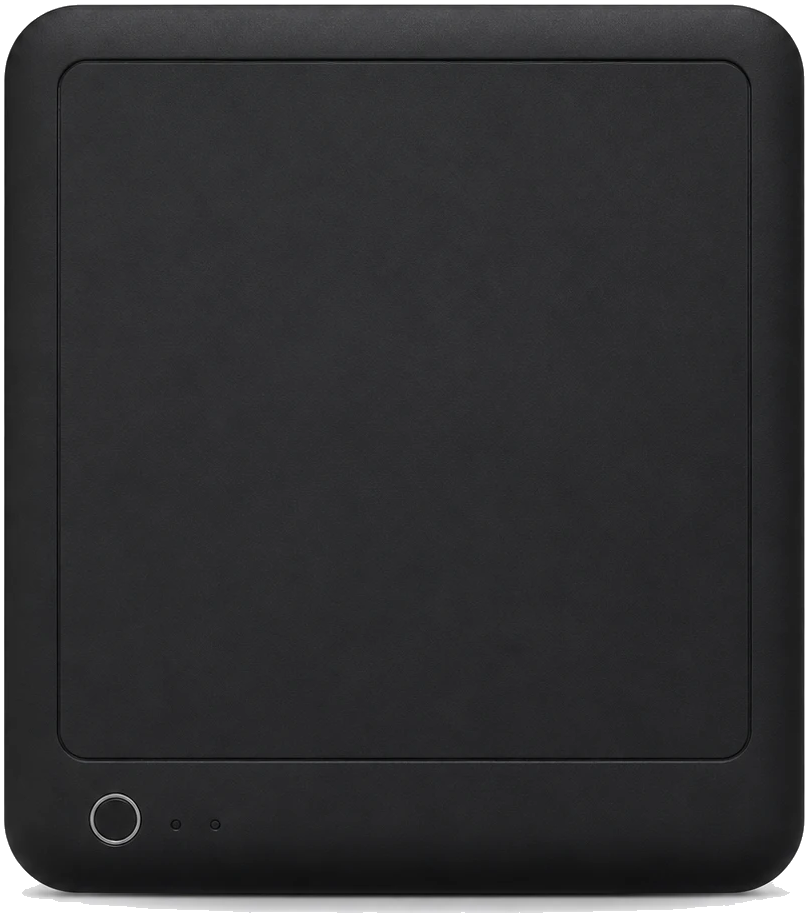
Tabletop reader for order box checks and checkout
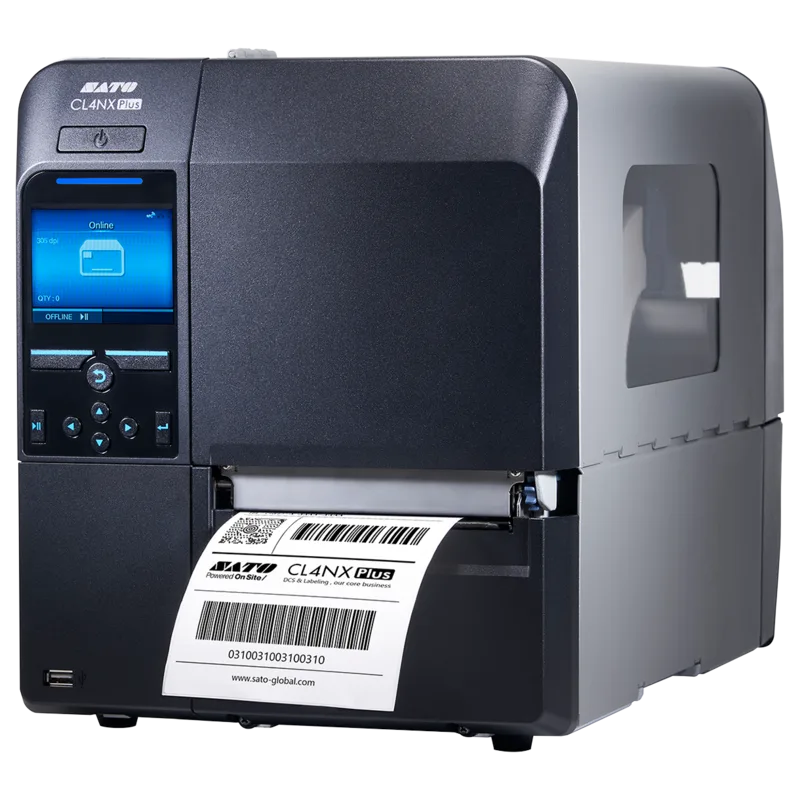
High-volume RFID printer for Beam label workflows
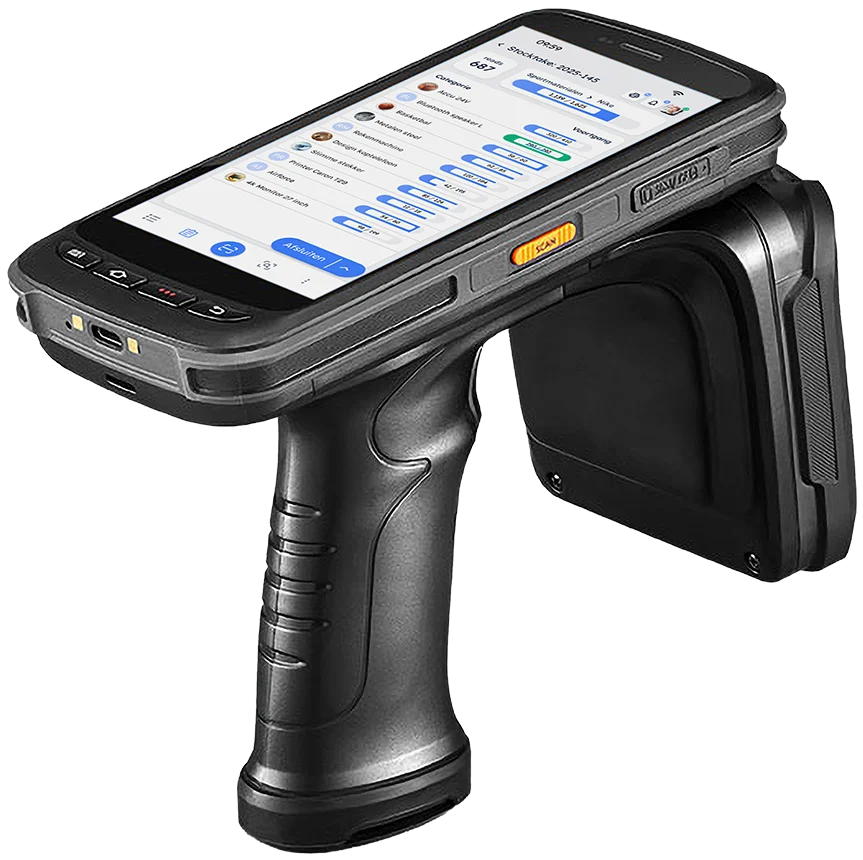
All-in-one handheld for stocktakes and item finding
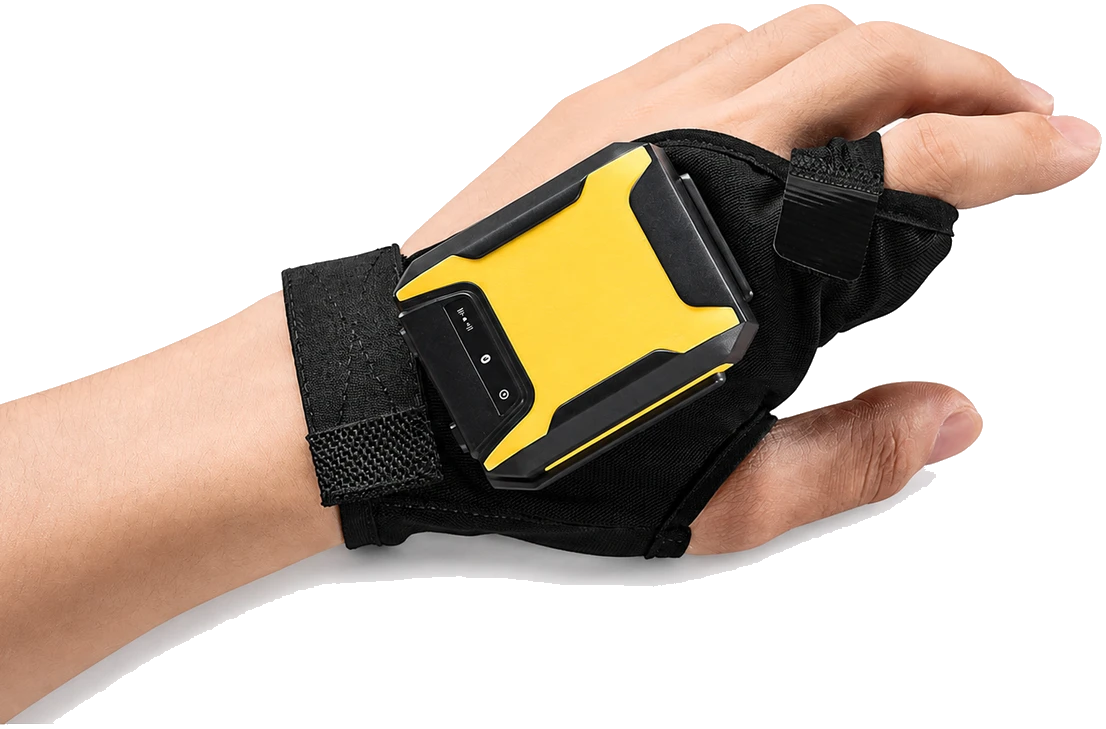
Hands-free short-range reader for picking and checks
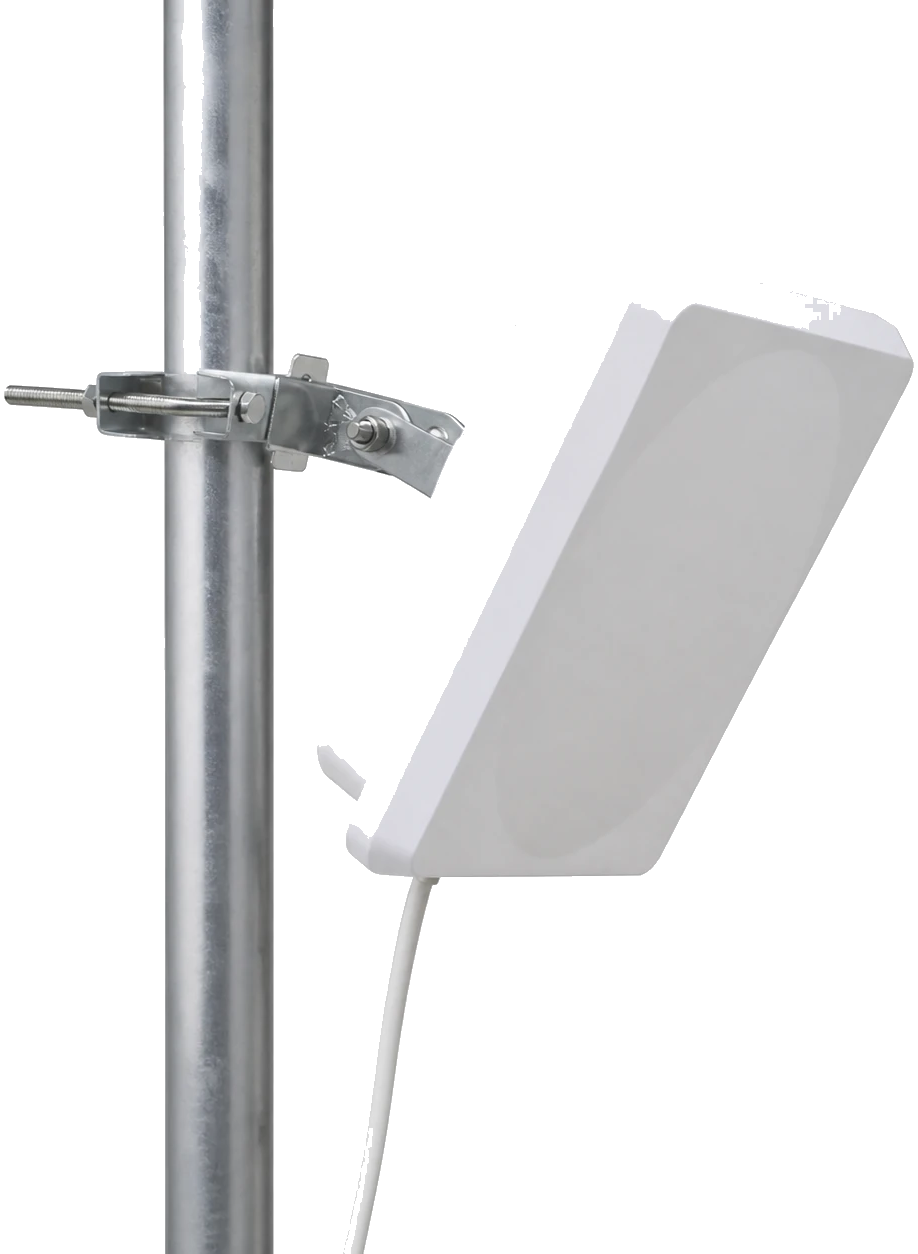
Integrated fixed reader for one controlled read point
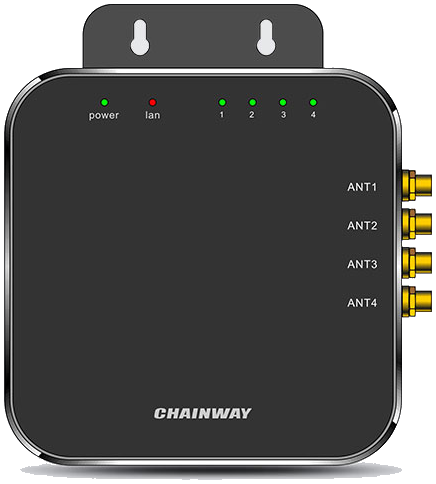
4-port fixed reader for custom antenna zones
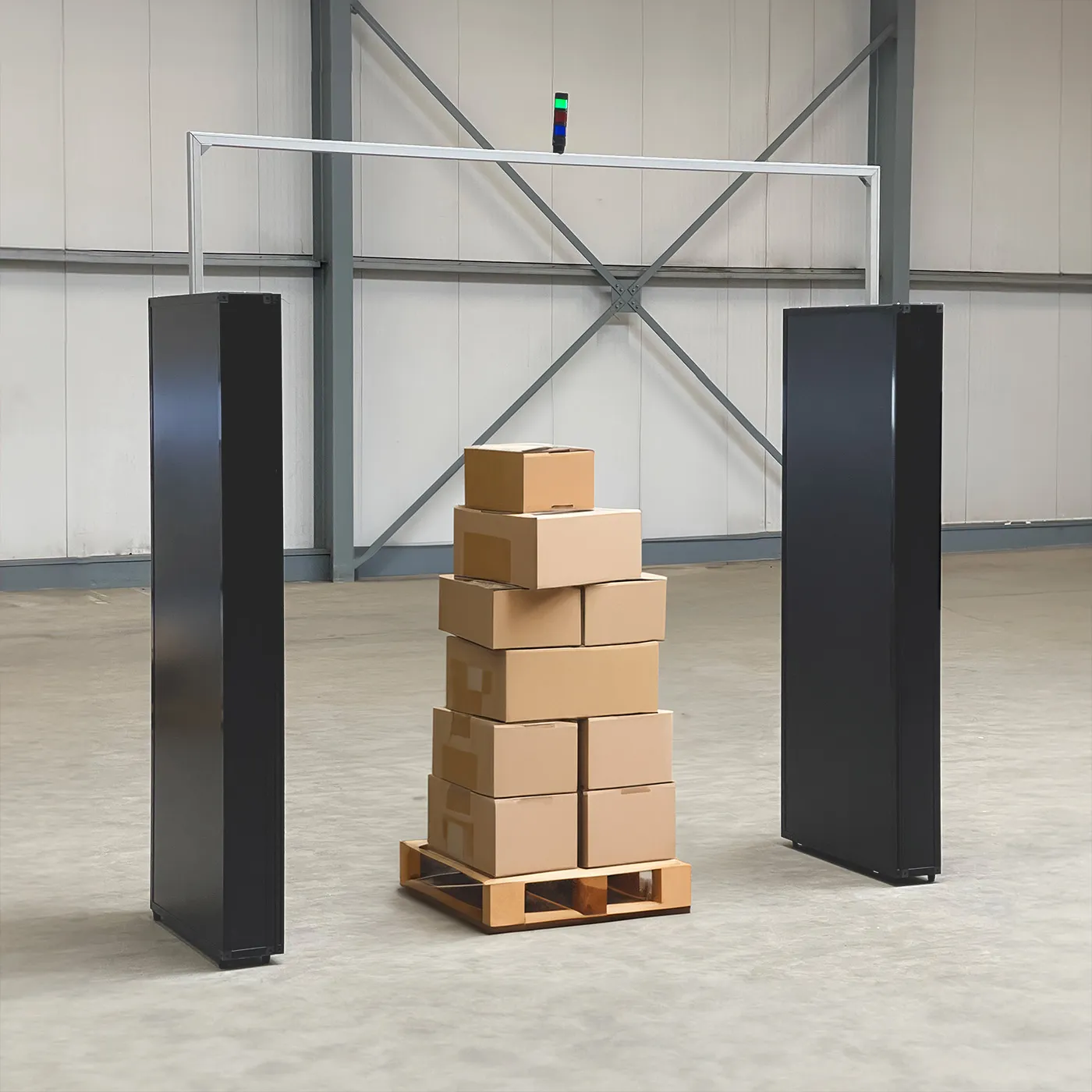
RFID portal with configurable reader and antennas
+ €145 / month
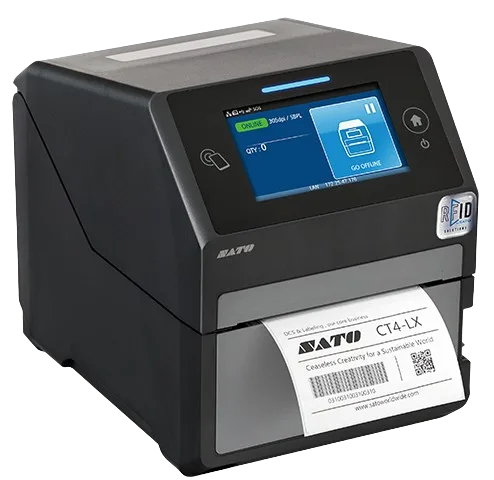
Compact RFID label printer for smaller volumes
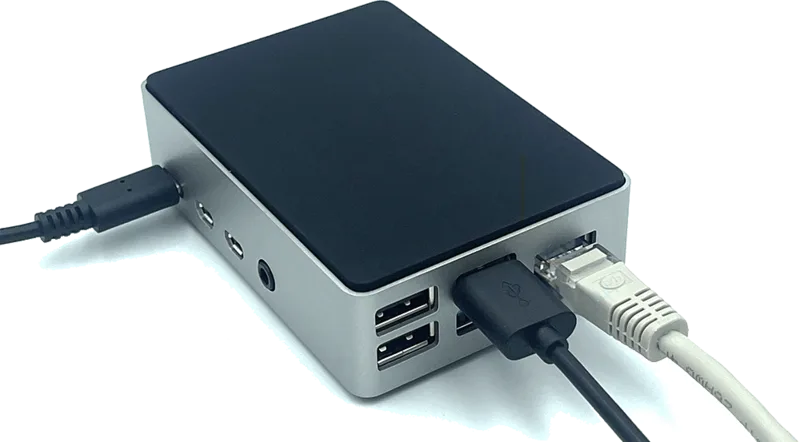
Cloud bridge connecting any printer to Beam
+ €25 / month
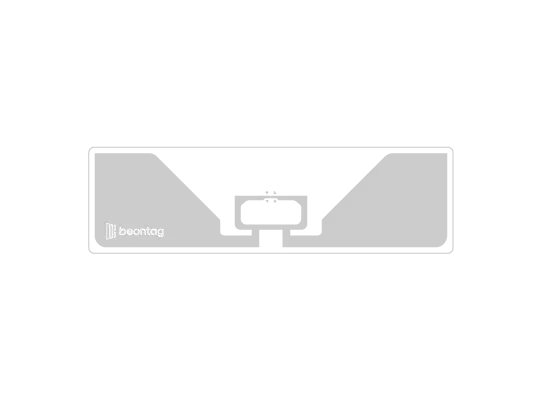
RFID label, Impinj M830, 94 × 27mm
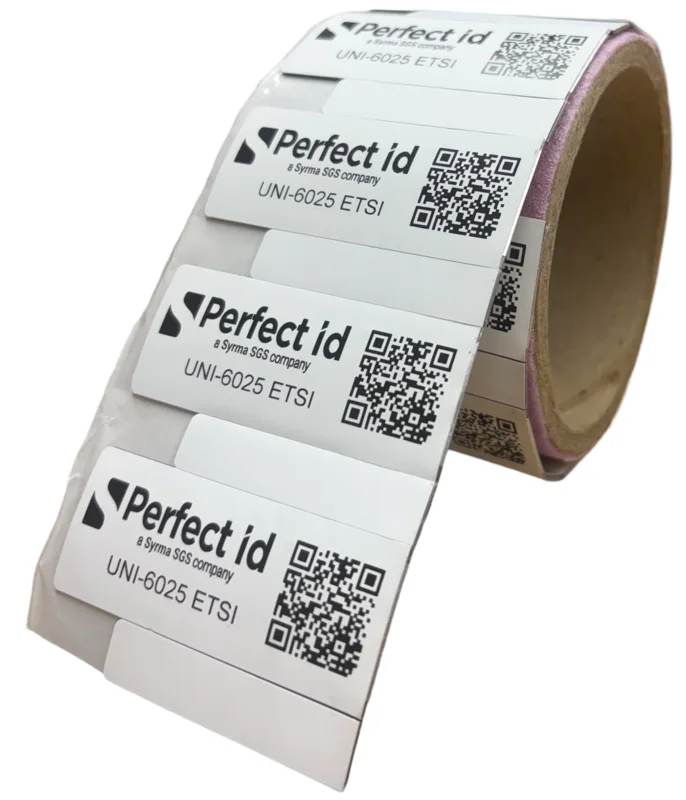
On-metal RFID tag, Impinj M830, 60 × 25mm
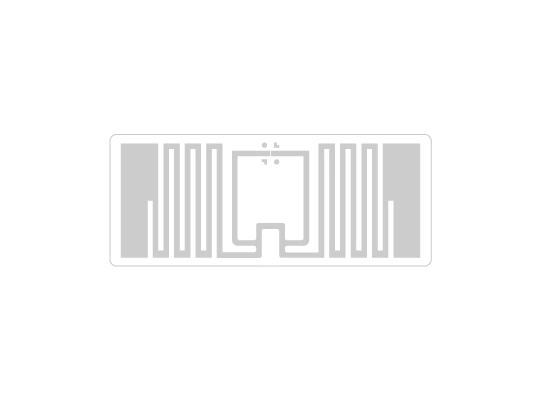
RFID label, NXP UCODE 9, 46 × 19mm
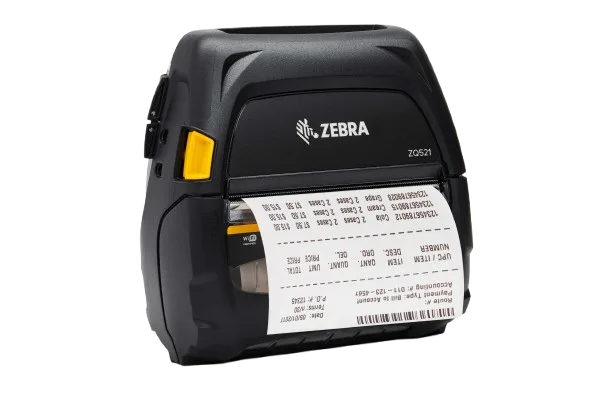
Mobile printer, no Print Bridge needed
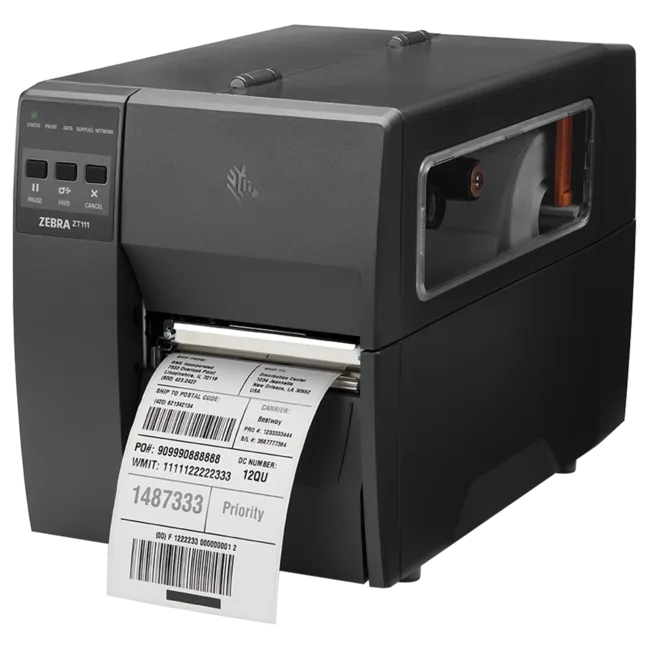
Industrial label printer, Beam compatible
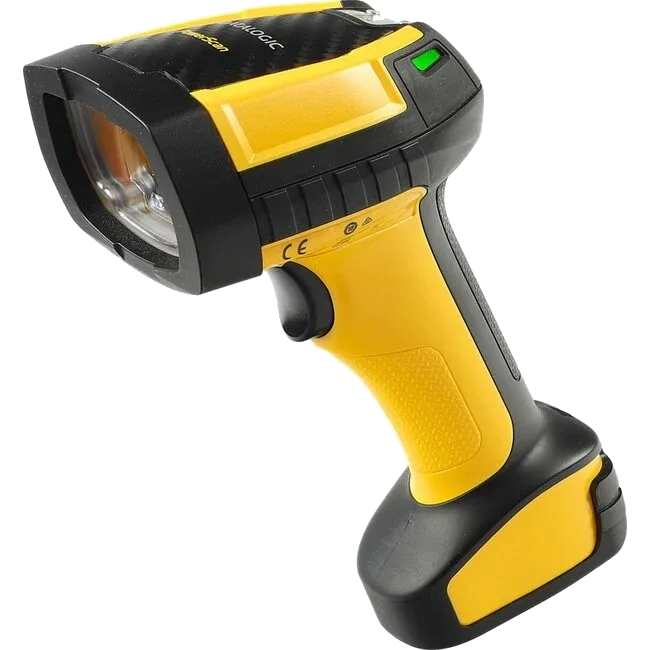
Long range barcode scanner, up to 20m
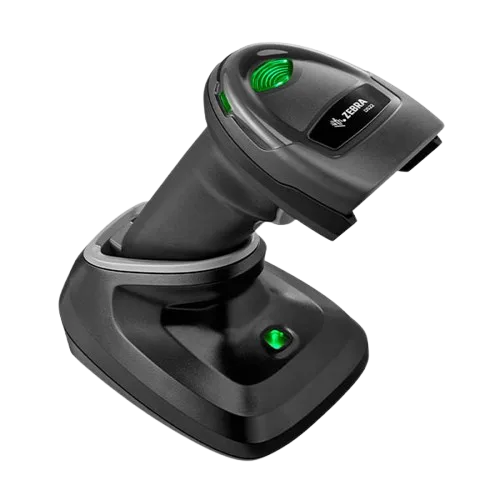
2D barcode scanner incl. cradle
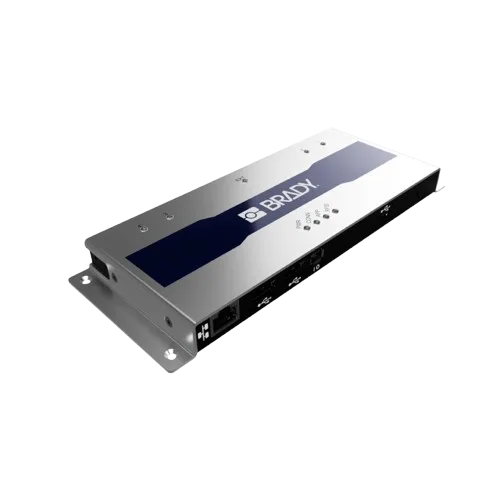
Entry-level 4-port RFID reader
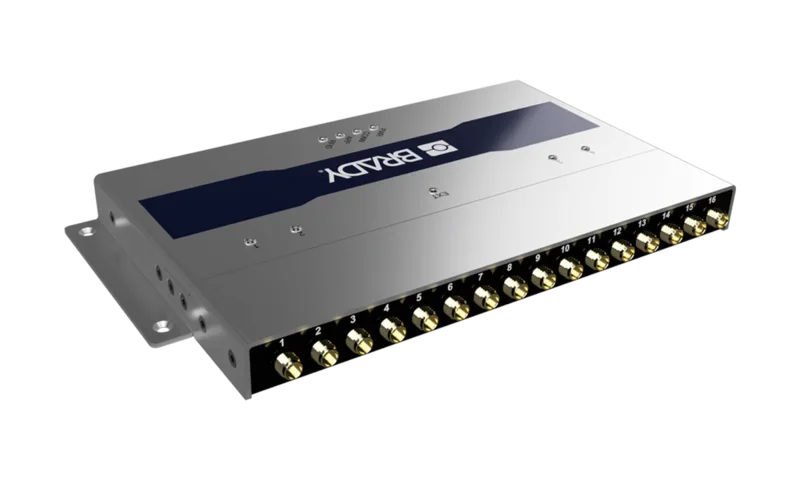
RFID reader with optional multiplexer
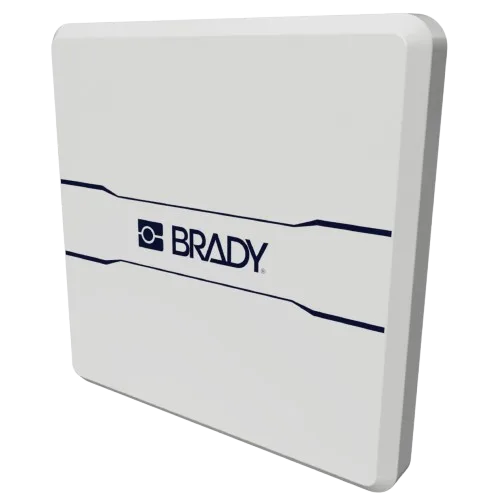
Integrated overhead RFID reader & antenna
+ €75 / month
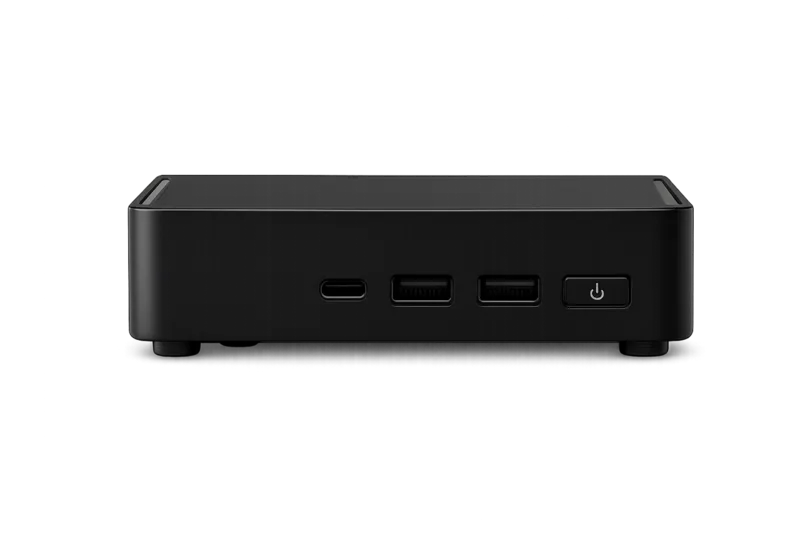
Cloud-connects your fixed RFID scanners
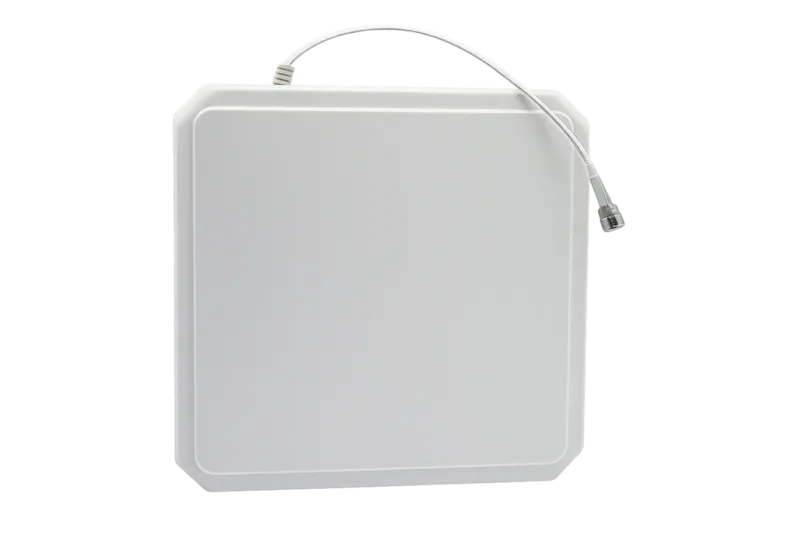
Standard fixed RFID antenna
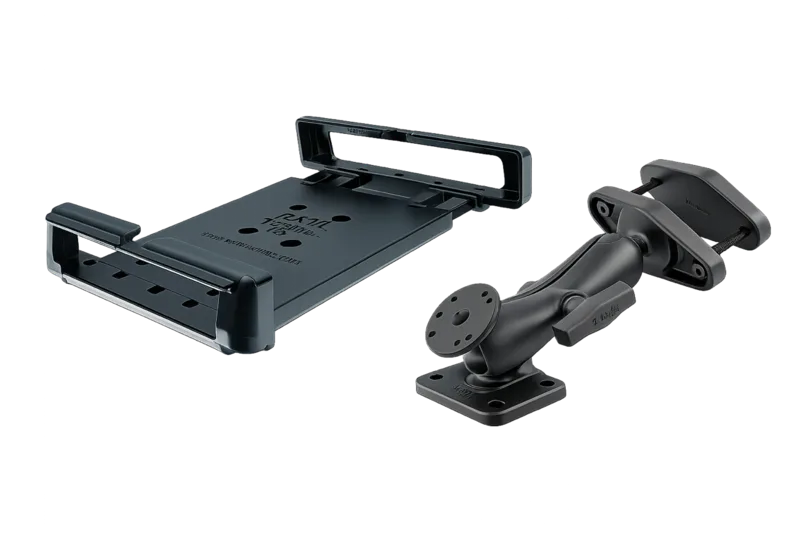
Forklift bracket set with iPad casing
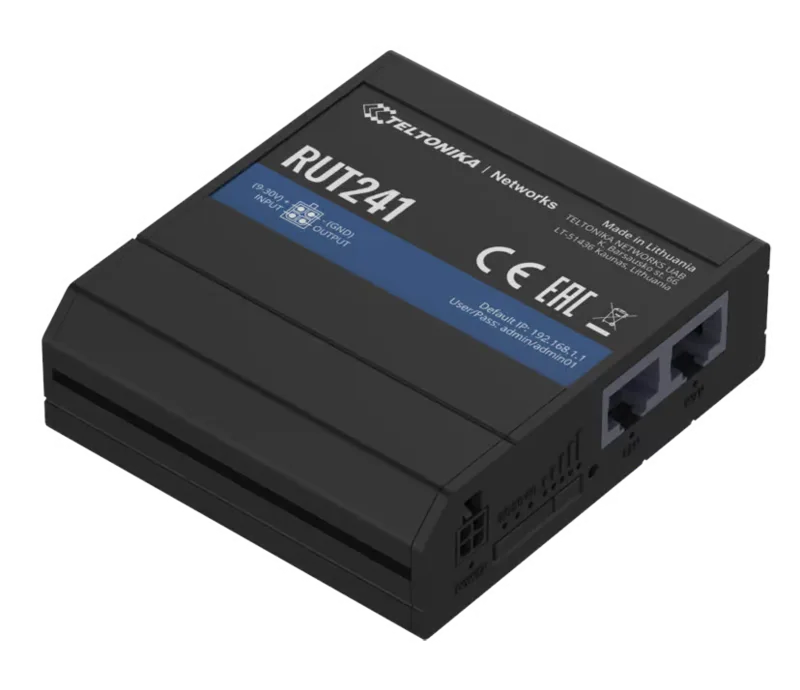
Industrial 4G router for Beam app
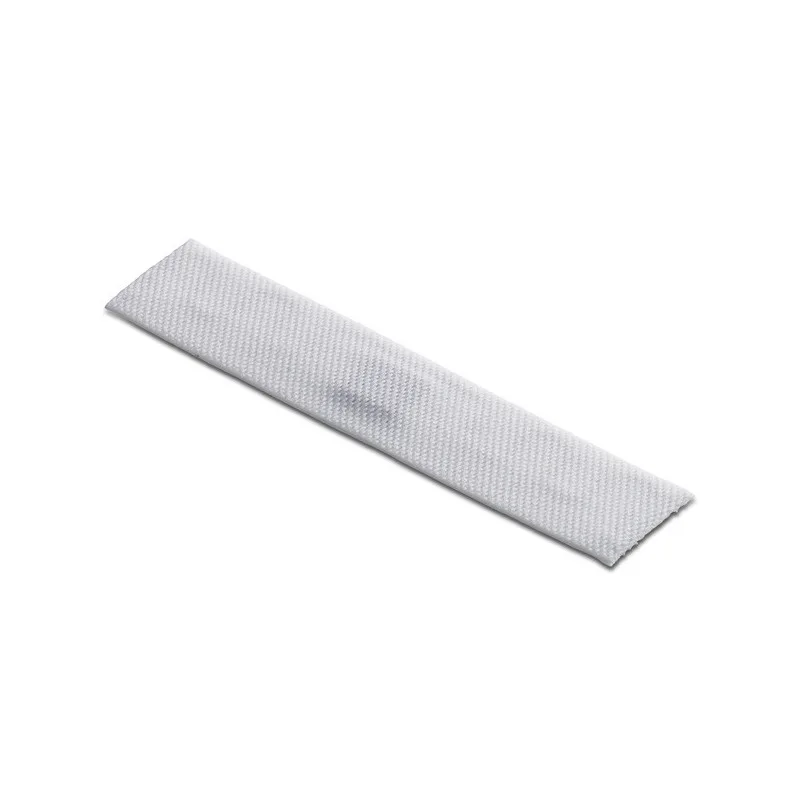
Textile RFID tag for laundry & rental, 70 × 15mm
No products found. Try a different search term or category.
02 Choosing hardware
03 Validation
A device that connects successfully may still miss labels. We test the equipment with your products, packaging and quantities, in the places where you work. That includes items that are harder to read.
04 Scope
Tell us what you handle, where you work and what you need to record. We will identify equipment to test with your products.