Devices Overview

Beam Bridge, device setup flow, and network discovery

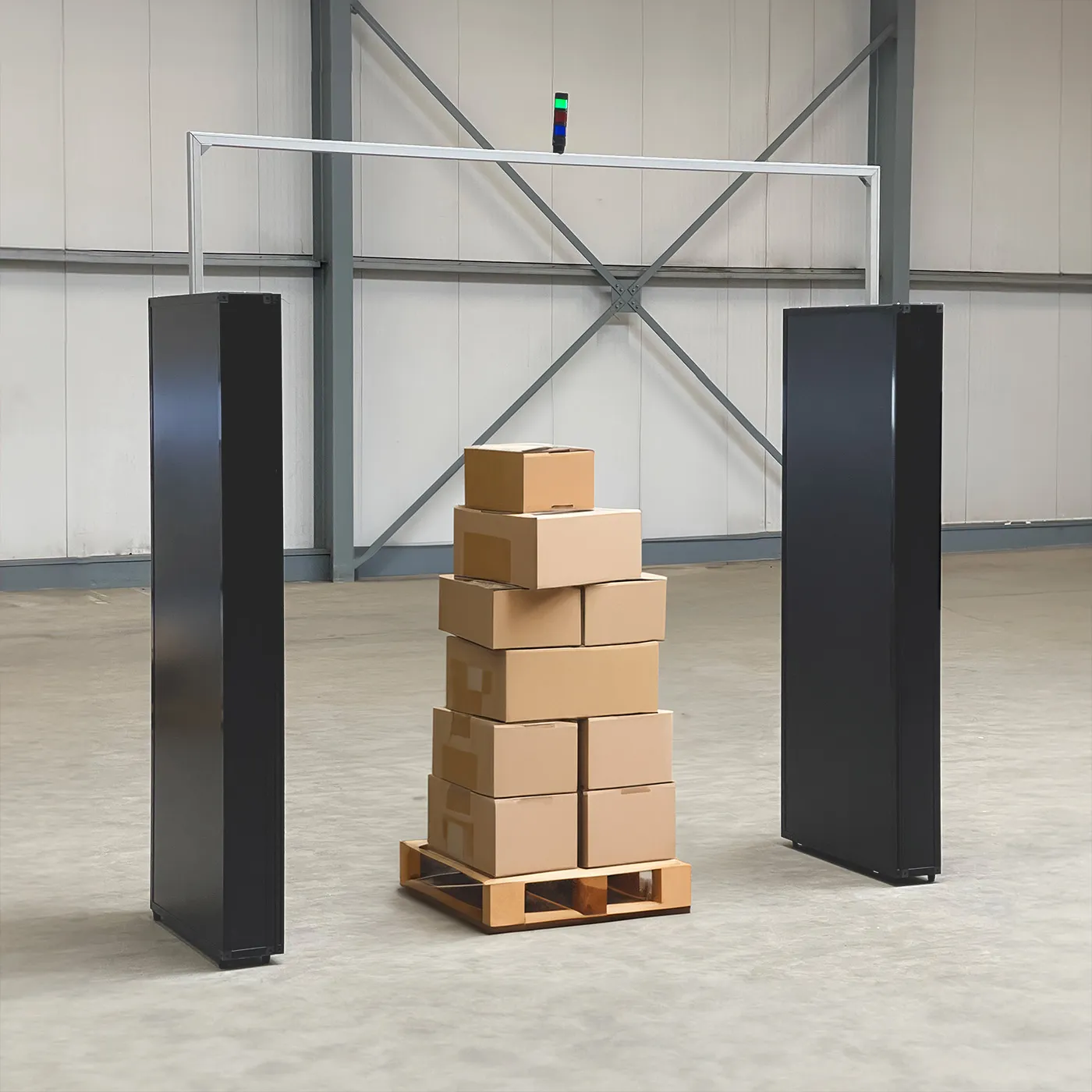
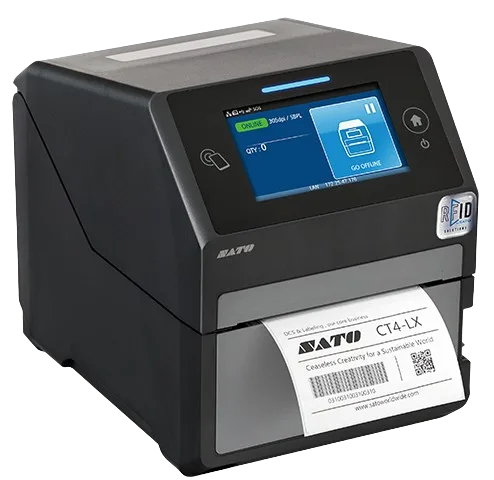
Beam integrates with a range of physical devices to extend your inventory management capabilities. From RFID readers for scanning to label printers and IoT status lamps, your connected devices work together to create a seamless workflow. You manage all of them from the Device Overview in the app; from there you can add a device or configure a device.


Opening the Device Overview

Open Settings from the sidebar or top bar. In the settings menu, tap Device Overview. You are taken to the Device Overview screen.

Device Overview screen

The Device Overview screen shows:

  • Summary: At the top, number of devices Online, Offline, and number of Bridges.
  • Device list: Devices are grouped by bridge or location. Each row shows an icon, device name, identifier (e.g. hostname or IP), and a status pill: Online, Offline, or Error.
  • Actions: Use the + button to add a device; use the search icon to filter the list (e.g. Search devices…).

Tap a device row to expand it and see details such as status, scan mode, hostname, antennas, device ID, and type. Use Configure to open the device configuration screen.


Adding a device

On the Device Overview, tap + to open Add Device. You have two options:

  • Beam Bridge: "Connect a Bridge to enable cloud features and remote management". Choose this to add a Beam Bridge for cloud-connected features.
  • Device: "Scan for devices on your local network". Choose this to go to Add Network Devices and discover RFID readers, printers, or IoT lamps on your LAN.

Beam Bridge

Choosing Beam Bridge takes you to the Beam Bridges screen. If you do not have a Bridge yet, use Contact Beam to get one.

Local network devices

If you choose Device, you go to Network Devices ("Find devices on your local network"). For the full steps (screen layout, scanning, adding a discovered device) see Add Network Devices.

ℹ️
Network scanning is not available in the browser. Use the mobile or desktop app to discover devices on your network.

Configuring a device

From the Device Overview, tap a device and then Configure to open its configuration screen. Depending on the device type you may see:

  • Reader status: "Reader is active" with an on/off toggle
  • Device info: for the label
  • Connection: hostname and MQTT port
  • Scan mode: options Start/Stop and Continuous
  • Antennas: enable or disable individual beams (e.g. Beam 1, Beam 2)
  • Save configuration: save your changes

Device categories

Beam supports three categories of devices:

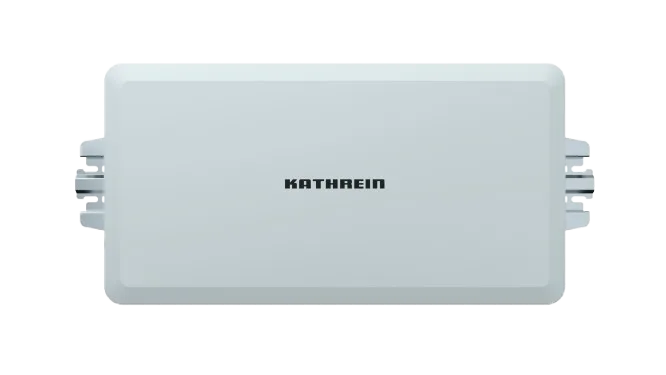
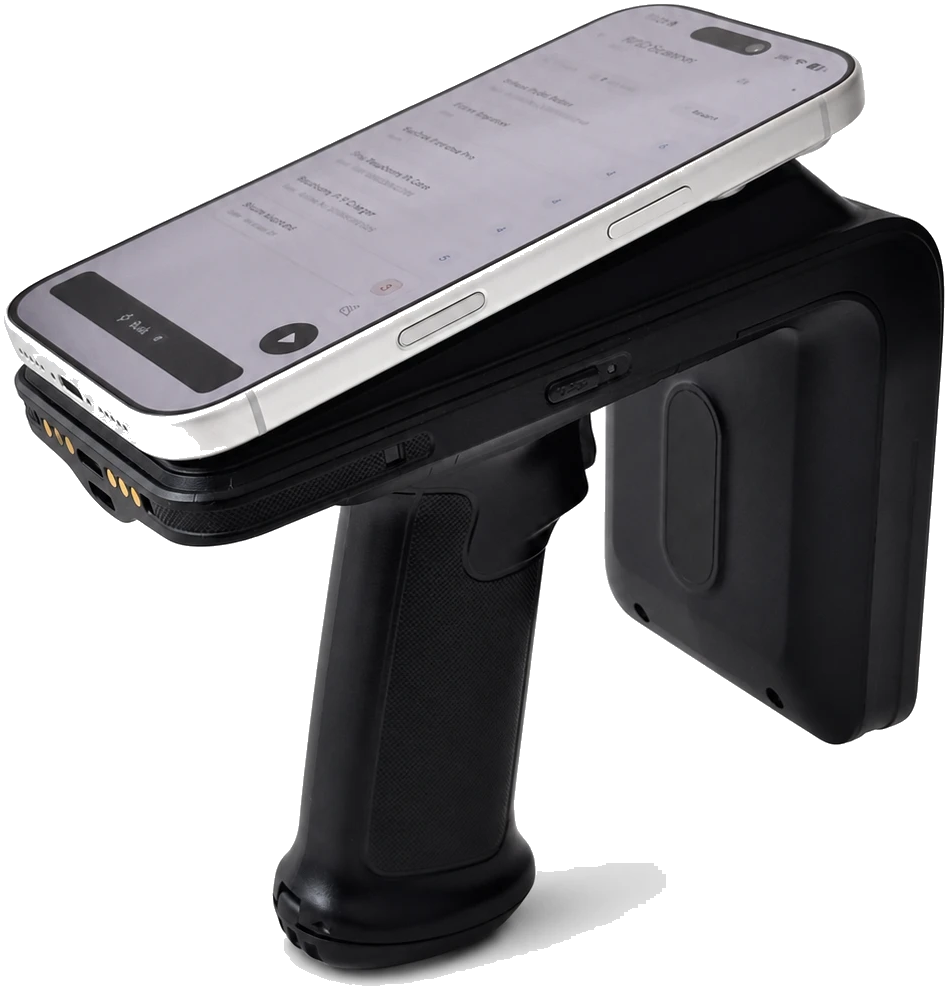
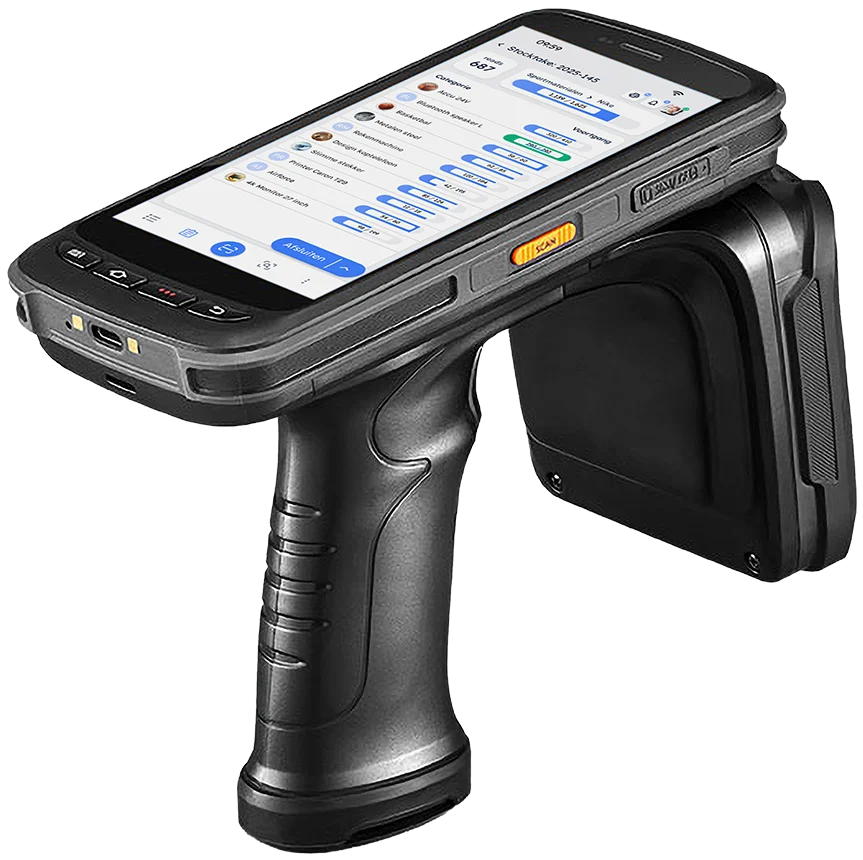
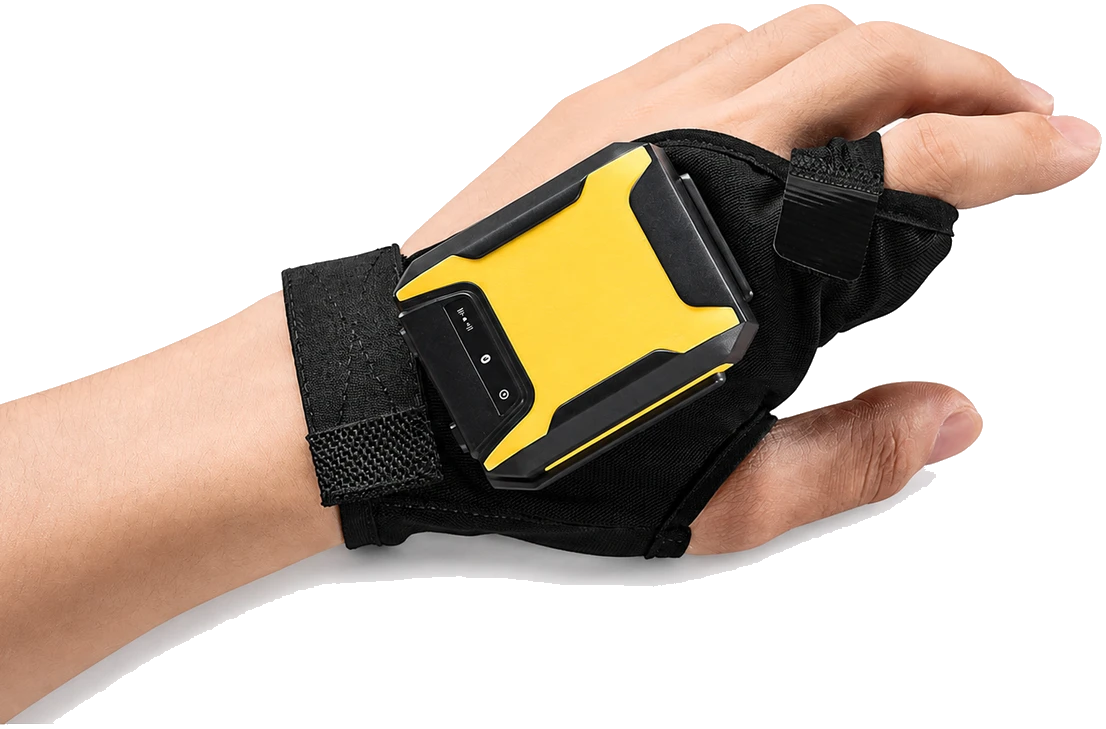
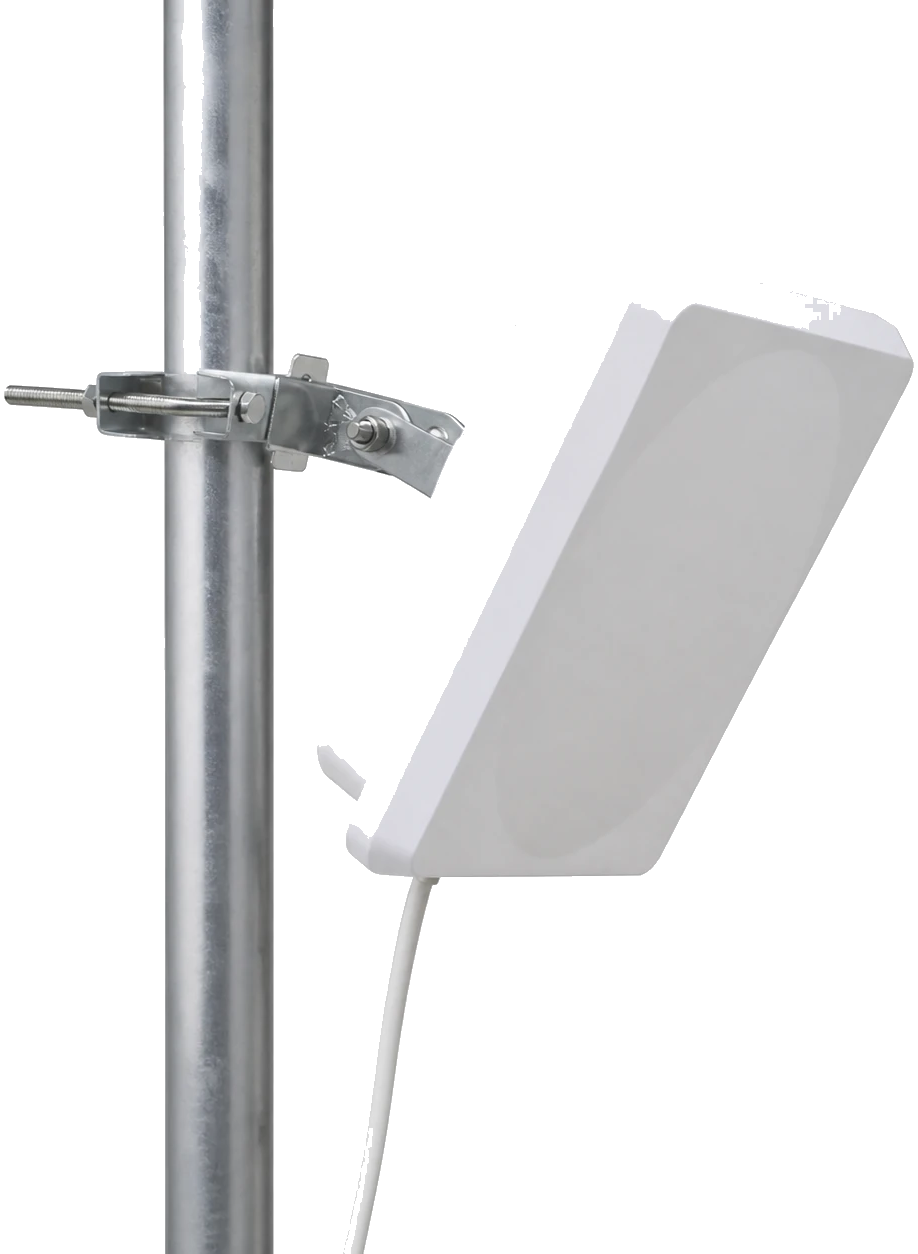
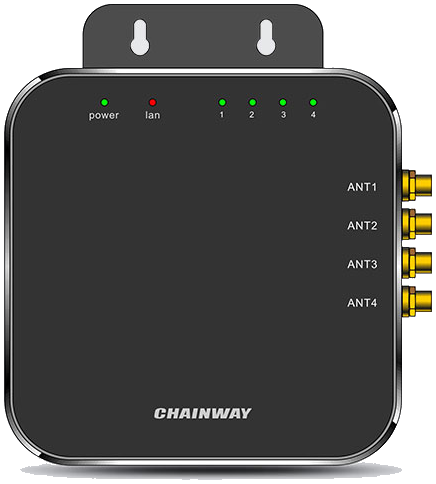
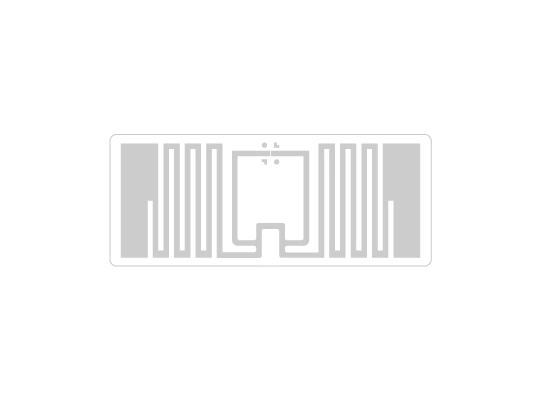
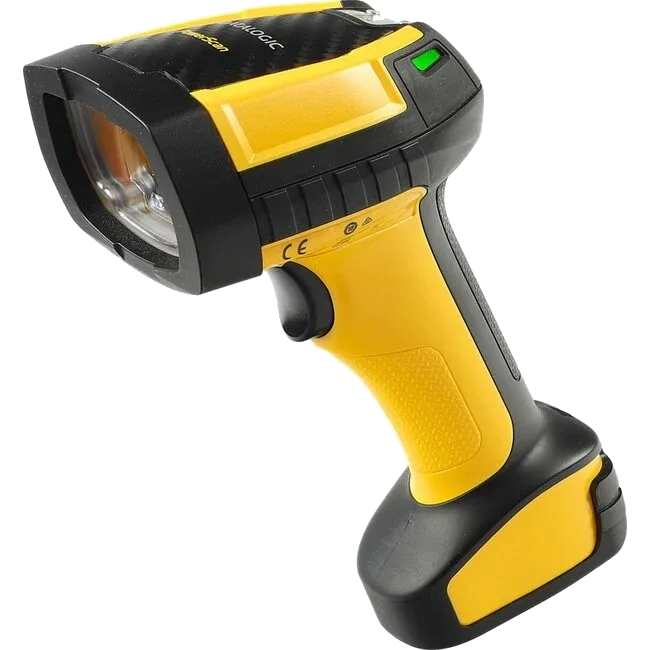
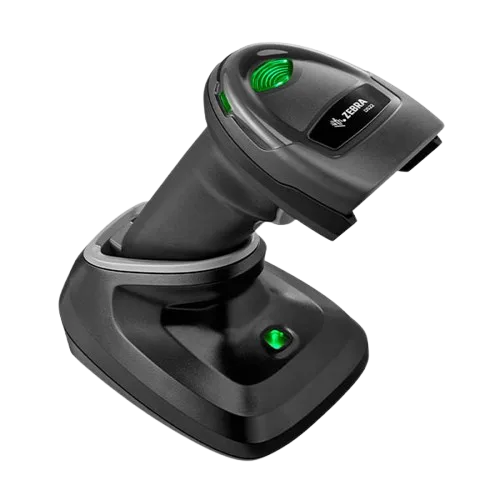
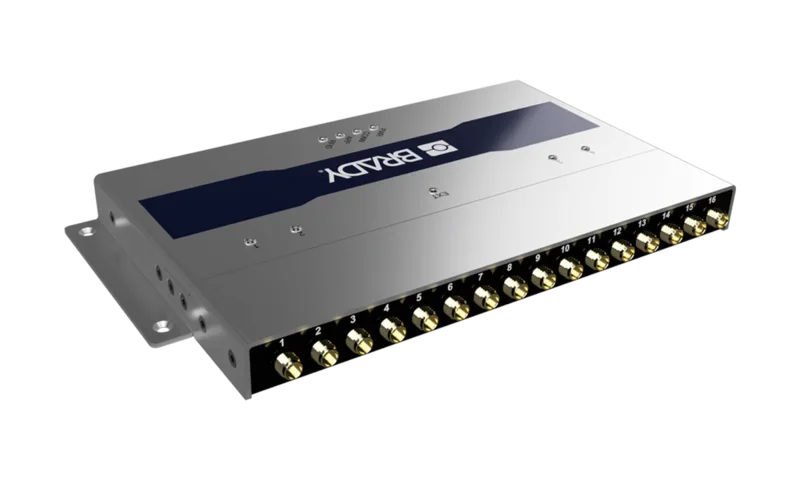
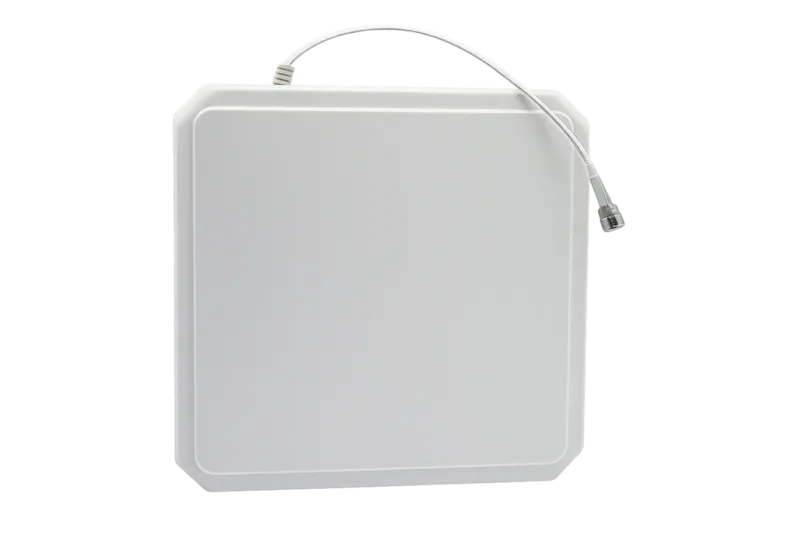
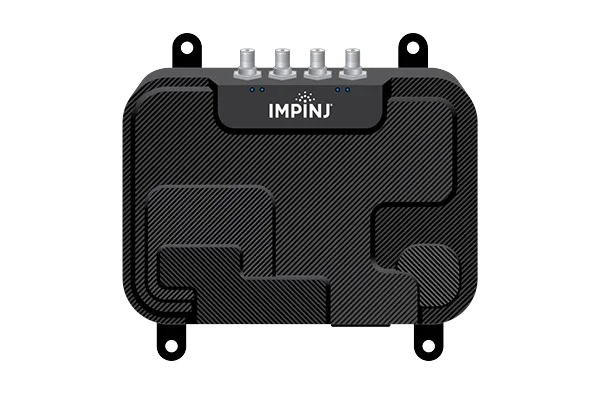
  • RFID Readers: Handheld and fixed readers for scanning RFID tags. See RFID Readers for supported models and setup.
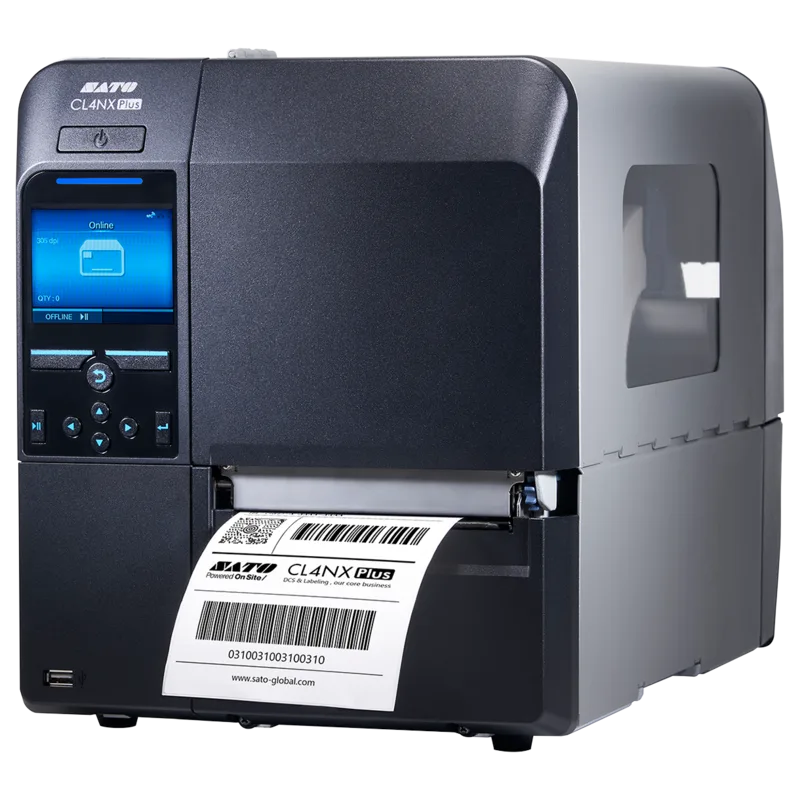
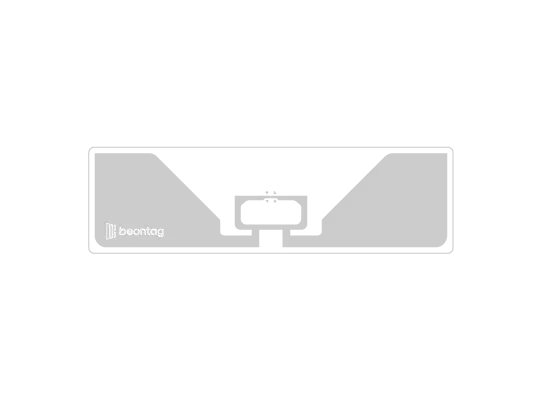
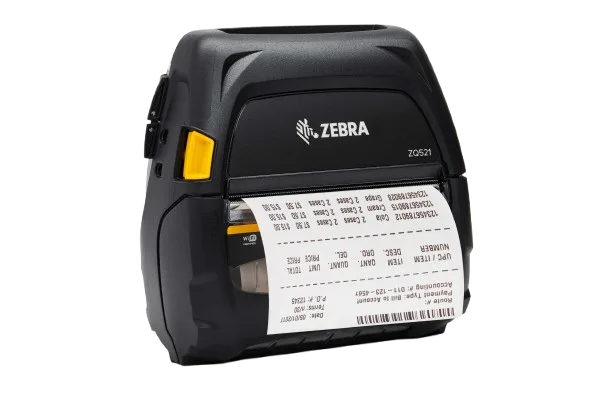
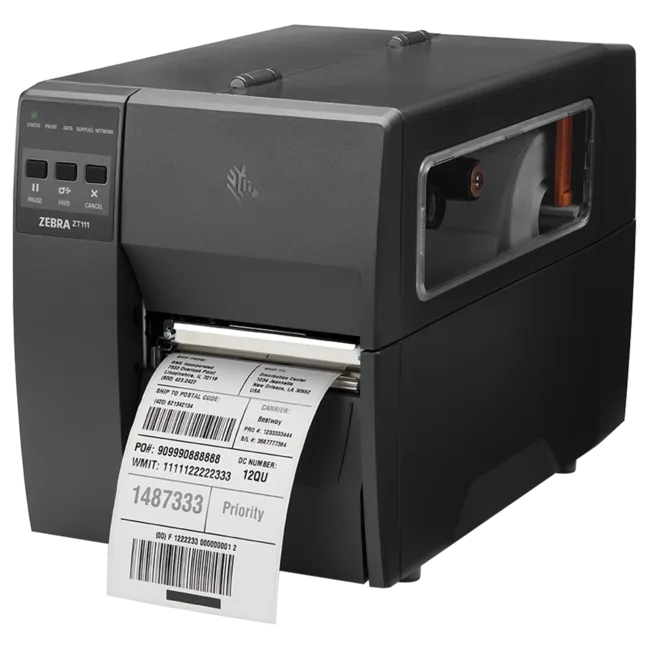
  • Printers: Label printers for barcode labels, QR codes, and RFID-encoded tags. See Printers & Lamps.
  • IoT Lamps: Status indicator lamps that provide visual feedback for scanning results and alerts.

Connection methods

Devices can connect to Beam in two ways:

  • Local WiFi: Connect directly to devices on your local network. Simple setup, works without internet.
  • Via Beam Bridge: Connect through the Beam Bridge hub for cloud connectivity, enabling remote access and advanced features.

Beam Bridge

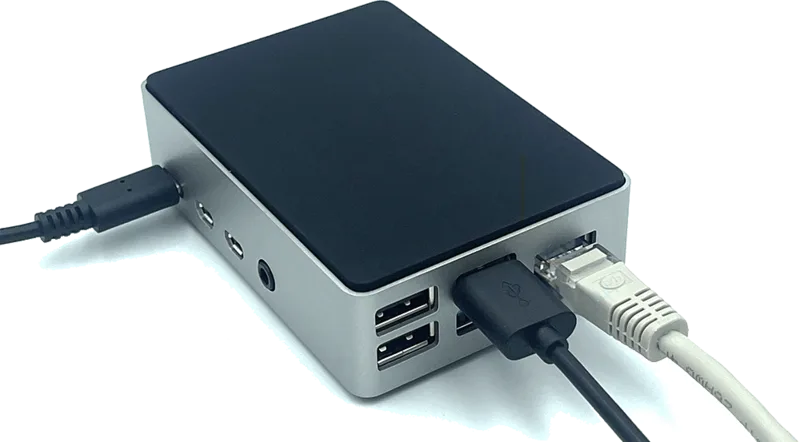
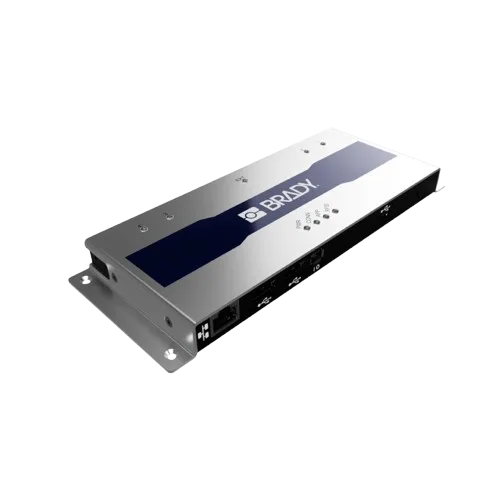
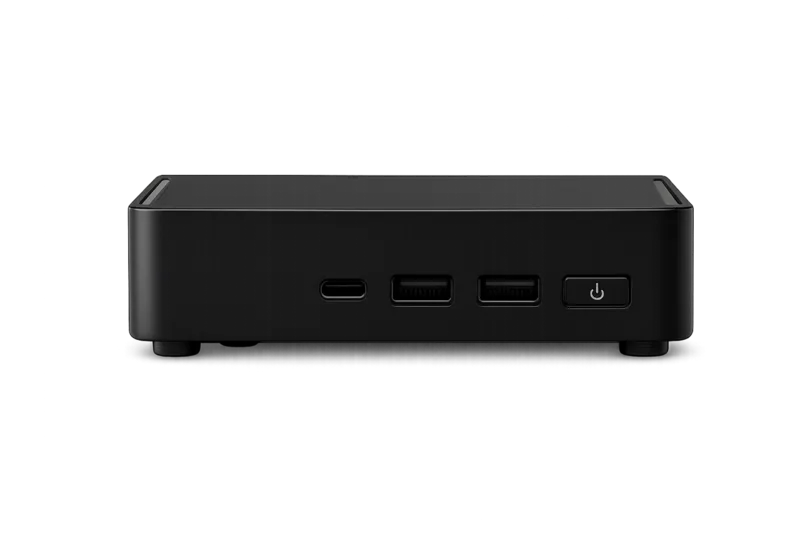
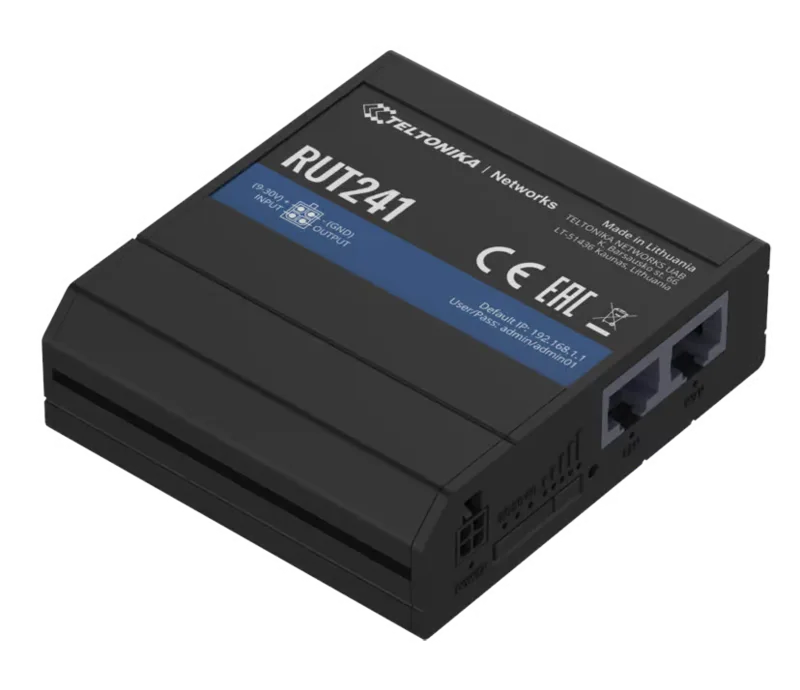
The Beam Bridge is a central hub that connects your local devices to the cloud. It acts as a relay between your on-site hardware and Beam's cloud services, unlocking powerful features that are not available with local-only connections.

FeatureWithout BridgeWith Bridge
Remote accessNoYes
Continuous scanningNoYes
Real-time notificationsNoYes
Cloud featuresNoYes

Setting up a Beam Bridge

Connect the Beam Bridge to your network (e.g. via Ethernet). In the app, open Device Overview via Settings, tap +, then choose Beam Bridge. Beam scans for available Bridge devices; tap the discovered Bridge to connect and give it a name (e.g. "Warehouse Bridge"). Once connected, the Bridge runs in the background and reconnects automatically after network interruptions.


Network discovery

When scanning for devices, Beam uses standard network discovery protocols to find compatible hardware on your local network. It performs a subnet scan, classifies devices by type, and displays each device with its name, IP address, and device type. See Add Network Devices for the full flow.

💡
Make sure your mobile device and the hardware you want to connect are on the same WiFi network. Devices on different networks or VLANs will not be discoverable during the scan.