RFID handheld
The employee goes to the stock.
Walk up to a rack, delivery or return. You choose where and when to count, check or search for a tagged item.
View the handheldRFID inventory management
RFID reads multiple labelled items at once. Beam identifies the items, compares them with expected stock or orders and shows what needs checking.
Tagged stock passes through a configured read zone.
01 · From product to identity
An RFID label contains an antenna and a chip with a unique code. Beam links that code to one individual item, such as a single chair.
The reader uses radio waves to read the unique codes.
You do not need a direct line of sight to each label.
Beam matches the codes read to the corresponding items.
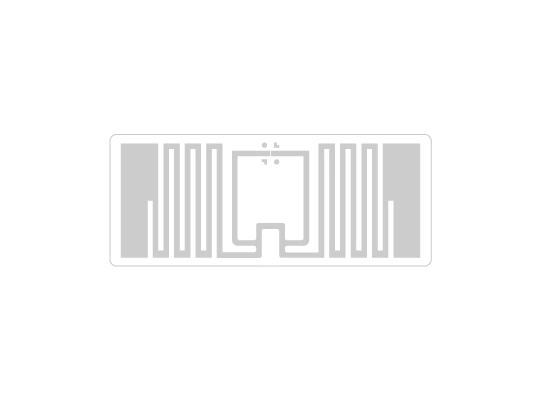 Antenna Chip
E2801160600002A4F1C39B21Sofa Larvik 2.5-seater cognacExample of a tag linked to an item in Beam02 · The reading session
Move the handheld along the rack. In this example, tags light up as they are read. Beam then checks the result.
An employee reads the tagged stock.
Choose “Find one item” to follow the selected tag. A stronger received signal helps your search; it does not give an exact position.
The handheld read 240 unique tags. Beam expects 243 items for this count.
Follow this count in Beam03 · From a read to a result
Follow the 240 tags from the handheld example. Beam compares them with the 243 expected items and shows which 3 have not yet been read.
The 240 unique tags are matched to known items. Each item counts once.
240 items read, 243 expected. The count shows a discrepancy of 3 items.
See which items have not been seen and check their expected positions.
Alongside the 240 unique tags, there are 88 repeat reads. Beam keeps these separate. Reading the same label again does not increase the count.
Beam shows the 3 items and their expected positions: B-11 and B-12. Check those positions and use the handheld to search if needed. An unread tag does not mean the item is missing.
04 · The method that fits
Enter stock quantities in the app.
Scan items one at a time with your phone or scanner.
Read multiple RFID-labelled items at once.
05 · The right setup
Test the tags, reader and setup with your own products, in your store or warehouse. Include everyday tasks and items that are difficult to read.
Choose a label and position that suit your product.
Metal may need a specialist label.
Test the antennas together with the passageway.
06 · On the floor
The load passes through a configured read zone.
The employee reads the tagged stock.
07 · From pilot to results
Compare the time spent counting, checking and searching with the cost of tags, hardware, Beam and implementation. A pilot with representative products and volumes lets you measure the difference.
We use your counting, receiving or returns process to show where Beam fits, which reading method to use and what to test in a pilot.