
01
RFID handheld
Read multiple RFID-labelled items at once when receiving, counting or checking stock. Or use the signal to find one item. You choose where and when to read.
The Beam platform
Receive products, track stock and assign tasks in your store or warehouse. From picking orders to dispatch and returns, your team works in one app with a floor plan, task planning and a clear view of stock.
HomeSee your next task and the plan for today.
Floor planEvery location on the map, with what is there and what needs doing.
CountCompare your count with expected stock and see the differences.
PickFollow the route to each product and confirm what you pick.
PlanAssign tasks and routes to your team.
InsightSee where a product is stored and how many you have.
Beam runs on iPad, iPhone, Android handhelds, in the browser and as a Mac and Windows app.
01 Your stock and your work
What you have, where it is, what your team needs to do and what has already happened.
What it is: code, description, barcode. From your system, or managed in Beam.
Dining chair Siljan green · SIL-01-GRNTrack how many you have of a product, or give each item its own code so you can follow it individually.
24 chairs · or one chair with its own codeWhere products are stored: the site, zone or rack. A pallet or container groups products together and has a location of its own.
Manchester › Zone B › Rack B › B-11What needs to happen: a receipt, count, pick or move, as a task for a colleague.
Pick task ORD-30412 · Nora BennettWhat happened: every action in the activity log, with who, what, where and when.
10:05 · picked · B-11 · Nora Bennett02 Scanning
Scan barcodes one item at a time, using a phone or scanner. With RFID, read multiple labelled items at once.
Read multiple RFID-labelled items at once when receiving, counting or checking stock. Or use the signal to find one item. You choose where and when to read.
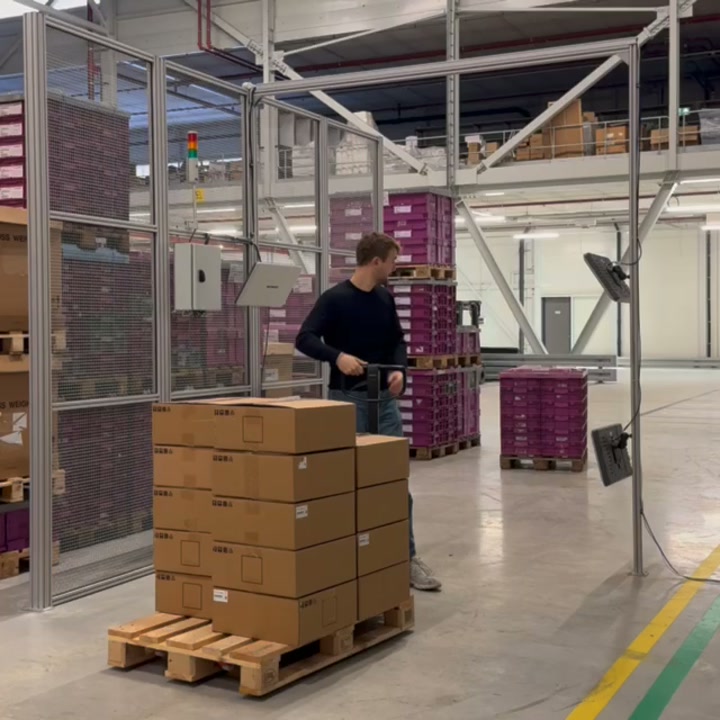
Read RFID labels at a doorway, scan table or returns point. For returns, Beam uses the link made at dispatch to identify the customer or location they came from. Each read zone is configured and tested.
03 The work
01
Check incoming items against the order.
02
See the suggested location and record where you store products.
03
Record where products move to.
04
Count your stock and check any differences.
05
Follow the route and confirm what you pick.
06
Check that the shipment is complete and correct before dispatch.
07
Identify returns, check their condition and put them away.
04 Control
Beam compares your count or scan with the expected stock or order. You can see which items need checking.
05 Further
Show us how your team works today. We will discuss what you need to track and show you how to do it in Beam.